
What can change your Google Ads account after everyone logs out?
Map four common ways Google Ads can change after sign-out. For connected tools, separate the acting identity, any user OAuth grant and account reach; check scheduled Scripts separately.


“We made no changes” can be completely true of the people in the room and completely false of the account. Nobody touched the keyboard. The account still had instructions.
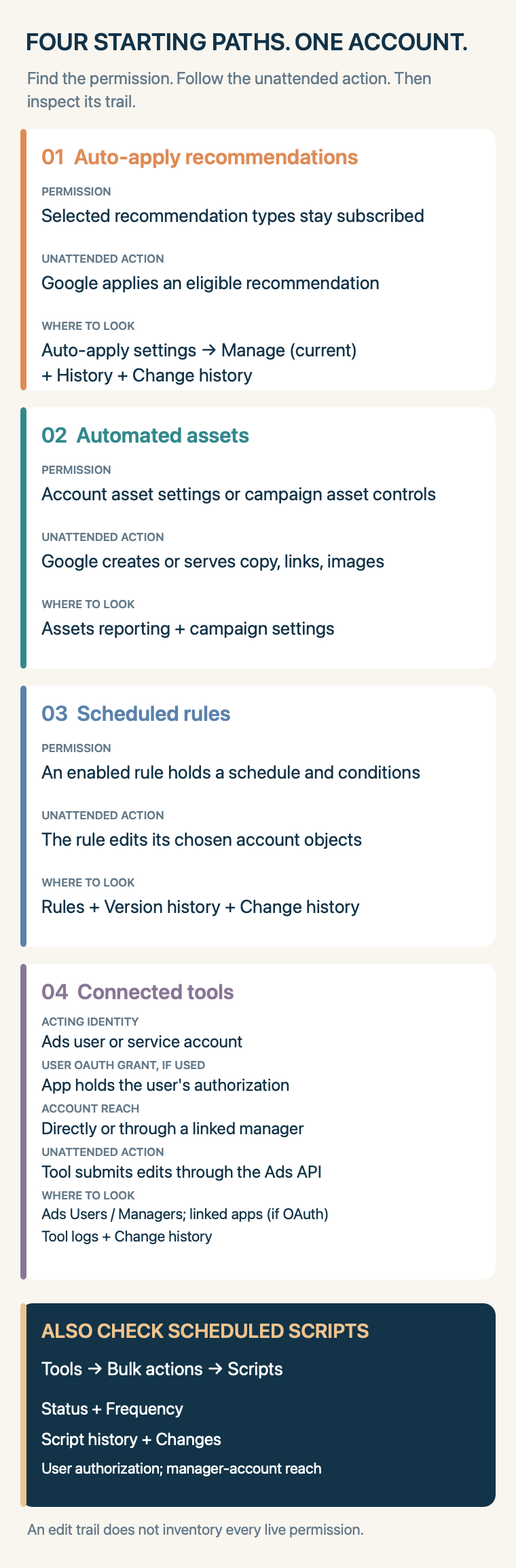
Those instructions do not live in one master automation switch. Some authorize Google to apply a particular recommendation when it appears. Some let Google assemble or display an asset. Some are rules your team scheduled. Some come from a connected tool acting as an Ads user or service account. Those four are a starting map; a scheduled Google Ads Script is another path, separate from Rules. If an ad or setting changed overnight, asking who logged in? may be the wrong first question. Ask which permissions could still act, and what can their trails establish?
A recommendation can become an instruction
In Campaigns → Recommendations → Auto-apply settings, a person can subscribe the account to specific recommendation types. Google then checks eligibility regularly; the account-level Recommendations page shows the day's queue, where an operator can inspect or dismiss a pending item. Depending on the subscribed type, an application can alter bids, targets, keywords or other settings. This route does not currently raise budgets, a useful boundary that says nothing about what a rule or connected tool may do. Google's auto-apply explanation lists the available types and says they can change over time.
The permission and the footprint are on different screens. Auto-apply settings → Manage (also Admin → Account settings → Auto-apply) shows what is subscribed now. Auto-apply settings → History shows recent applications, the last application and the original opt-in date. For who opted in, Google points to Campaigns → Change history at that date. Its management instructions also explain how to turn off one subscription at a time. One disabled recommendation is one closed door, not a building lockdown.
An asset is a different kind of change
An automatically created sitelink or image can change what a person sees without a teammate writing a new ad. Google says its account-level automated assets are created and displayed when predicted to help; they may appear alongside or instead of manual assets. In Campaigns → Assets, filter Added by → Google AI to see many of them. For some types, including location assets and seller ratings, use the table's Account-level automated assets menu. That same menu's Advanced settings holds the per-type controls. The useful evidence here is the asset and its performance, not merely a search for a new campaign edit in Change history. Google's asset guide describes both views.
There is another layer at the campaign. In Search, Settings → AI Max → Asset optimization → Text customization governs Google's generated text for that campaign; older accounts may still show the legacy “automatically created assets” control during the current migration. Turning off account-level automated assets does not settle the campaign's text customization setting, or vice versa. Google documents the Search control separately. The owner question is less “which machine wrote this?” than “who owns the decision to allow this class of copy or imagery, and who checks what actually served?”
A rule can faithfully execute an obsolete decision
At Tools → Bulk actions → Rules, an enabled rule holds its own conditions, action and schedule. It can edit the objects it was built to edit when those conditions are met. The rule list tells you what is enabled; Version history shows runs, statuses and resulting changes. Change history also records changes made by rules. Google's rule guide notes that a scheduled rule may execute within two hours after its conditions trigger. A stale rule is not disobedient. It is taking yesterday's instruction unusually seriously.
Read the action and scope, not just the rule's reassuring name. “Weekend protection” could still be a budget or status edit, depending on what its author configured. A named owner should decide whether its conditions still describe the business and whether its run notification or Version history gets read. A manager account can run rules across client accounts, so look there too if the account's own rule list cannot explain a change.
The other schedule: Scripts
At Tools → Bulk actions → Scripts, check each script's enabled Status and Frequency. Script history shows runs and log statements; Changes shows the edits. A user must authorize a script to act on their behalf, and it can run while that user is signed out; Google's authorization guide points that user to Google Account → Security → Manage third-party access to review grants. Scripts can edit bids, pause ad groups or add keywords, including across child accounts from a manager account. Google's Scripts guide says top-level manager-owned bulk actions may be visible only at that manager. A clear Rules list does not clear Scripts.
A connected tool can keep a grant alive
An API tool can continue working after its operator signs out. Google's user-authentication guide describes offline OAuth access that refreshes without another human sign-in; its credential guide also describes service-account access. Trace three different things: which Ads user or service account acts; whether a user authorized an OAuth app, if that workflow is used; and whether that identity reaches this account directly or through a linked manager. Check Admin → Access and security → Users and Managers, including the full manager hierarchy, for identity and reach. For user OAuth, review the authorizing person's Google Account linked-app access too. A manager link extends reach; it does not establish which app a user authorized.
Campaigns → Change history records changes made through the Google Ads API as well as rules and manual edits, but the account's history is a trail of edits, not a complete inventory of external jobs or future permission.
Suppose it shows an API edit at 09:42 to a campaign's target ROAS. Note the account ID, displayed time, account time zone, affected campaign and setting, and any old and new values in the expanded entry. Ask the connected tool's owner for its job inventory and request/result logs; the account screens do not supply that side of the comparison. Across all jobs using that grant, compare runs around 09:42 (aligning time zones): which job's request or result names that account and campaign and sets the observed value? A matching run time is a lead; a matching target and requested change is stronger evidence. If two jobs could have sent it, or their logs say only “success,” leave the job unresolved. Google's Change history guide describes the UI's filters and details; its API Change Event documentation identifies client type and, when visible, the user. An “API” label is not an external job ID.
The practical review habit follows from the kind of authority, not from a universal “automation on/off” policy. Set the interval shorter than the time an unwanted change could safely run. A short promotion may demand a same-day look at generated copy and links; low-risk keyword cleanup may tolerate a weekly review of applications. Revisit subscribed recommendation types when goals change. Compare rules and Scripts with the current business rule and read run failures. Keep a human owner for each tool grant and job, then reconcile its logs with account changes. Spend the most attention where an action could cross a promise to customers or a spending boundary. Keep the useful automation whose owner can explain its scope.
The empty chair is not the problem. The problem is a permission nobody can name, paired with a trail nobody reads.