
Try your landing-page enquiry without a mouse
Follow one enquiry by keyboard, including the service selector and a deliberate mistake. Leave with a completed journey or a problem your developer can reproduce.
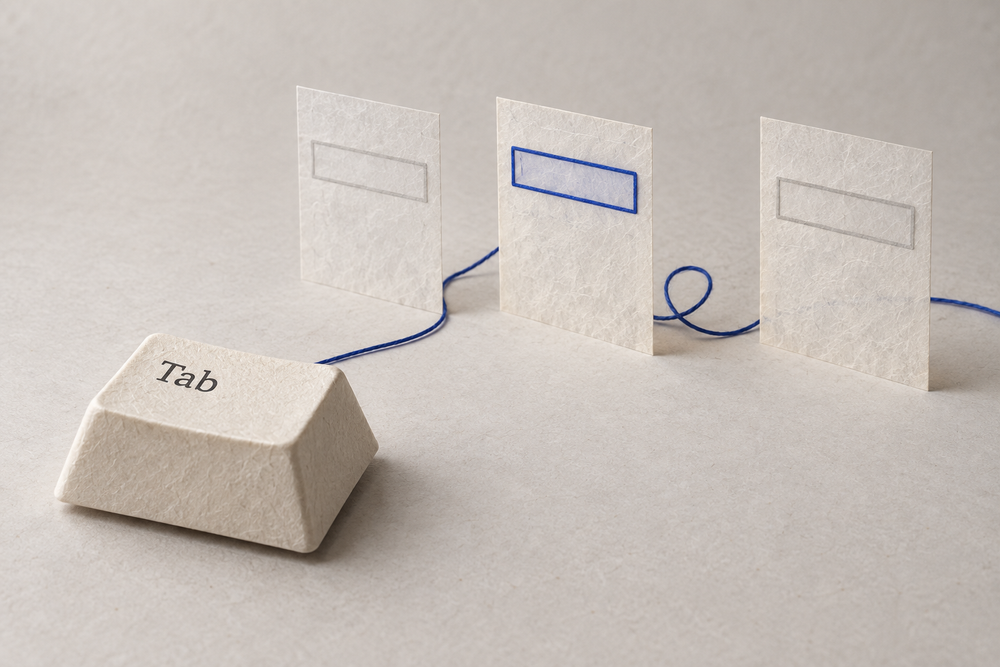
You can approve the ad, the offer and the landing page without ever discovering that someone cannot choose a service on the enquiry form. Your mouse takes you straight there.
Put it aside for one complete enquiry. Keep this walkthrough beside the page. The useful result is a journey you completed, or a precise account of where it broke.
This is a first keyboard review, drawing on W3C’s Easy Checks. It cannot certify the page’s accessibility or tell you how many conversions a repair would recover.
Before you start
Open the campaign’s destination URL directly. Agree on test details and a test submission with whoever receives the enquiries; even an invalid submission might reach their systems. If you cannot send a test, stop before submitting and record that error recovery and completion remain unchecked.
Use your usual desktop browser. Note its version, your operating system, window size and zoom. On a Mac, check the system’s Keyboard navigation setting. In Safari, enable “Press Tab to highlight each item on a webpage” under Settings → Advanced. A browser preference can otherwise make working controls appear unreachable. Apple’s Safari guidance explains the Tab and Option-Tab behavior.
Choose a plausible enquiry: request a repair, choose a service, provide contact details. Use the equivalent task on your page. The illustrations below show an invented form, not a tested business.
1. Find your place, then reach the form
Start with focus in the browser’s address bar. Put aside both mouse and trackpad. Press Tab to move forward; Shift+Tab moves back. Watch for the outline, underline or other visible change showing which control will receive your next key press.
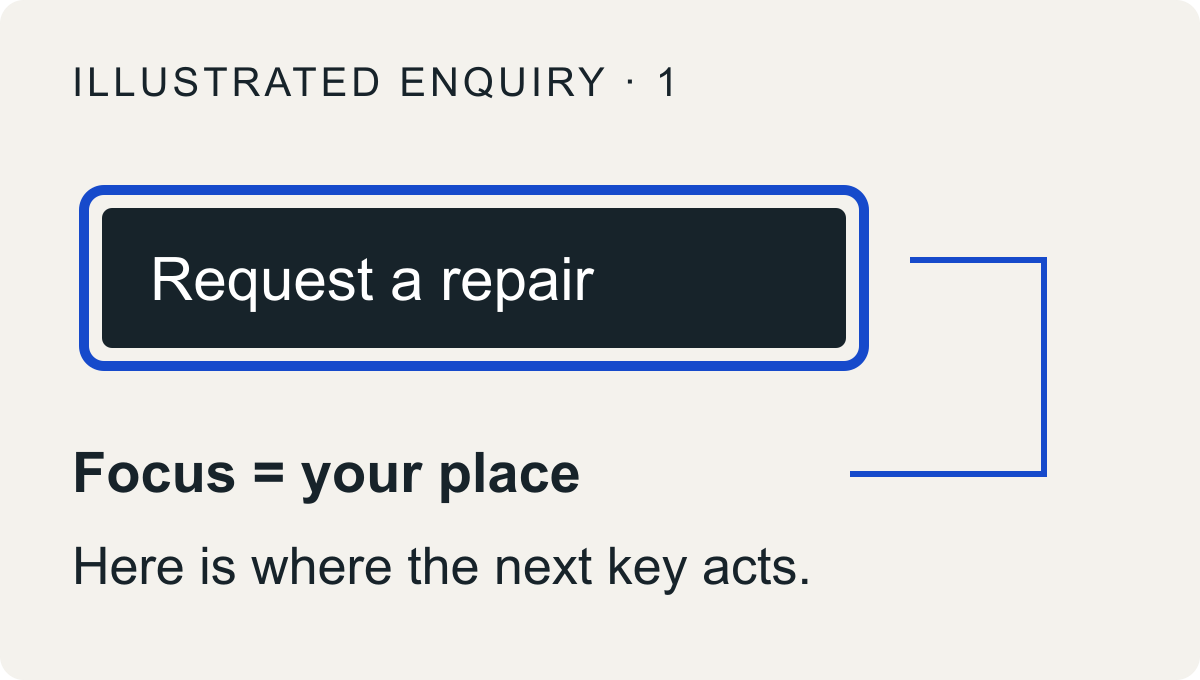
The outline locates you. It does not mean you have activated the button.
Follow the actual route a visitor encounters, including a cookie choice or introductory overlay. Reach the enquiry link or button, then activate it. Enter opens links; Enter or Space activates buttons.
Keep looking for your place after each change. A page that scrolls to a form but leaves keyboard focus elsewhere deserves a note: describe where the next Tab takes you. W3C’s keyboard interface guidance explains why visible, predictable focus matters.
If the form opens in a modal window, Tab normally stays inside it. That alone is not a trap. Try its Close or Cancel control and Escape; after closing, check that you can continue from a sensible place. Reopen it to finish the enquiry. This contained focus is part of the modal dialog pattern.
2. Choose something other than the default
Fill the fields by keyboard, reading the labels and instructions as you go. At the service selector, deliberately choose another service, then return to the one your enquiry needs. You are checking whether a visitor can make a choice, not merely pass a preselected value through.
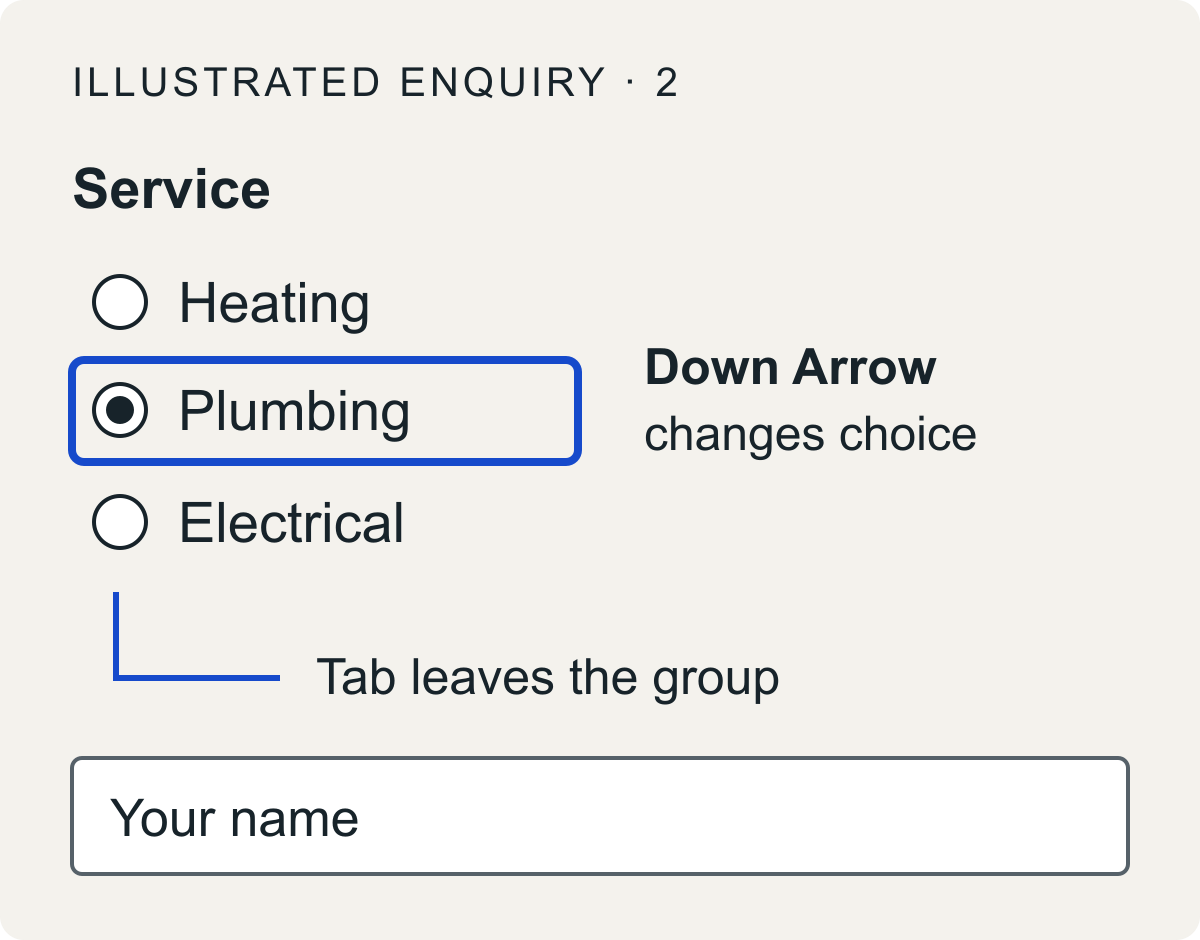
For an ordinary radio group, Tab enters or leaves the group; arrow keys move among its choices.
Do not report the second and third radio options as “skipped” just because Tab passes them. Use the arrow keys. In the usual radio group pattern, arrows also select the newly focused choice; Space selects a focused, unchecked option.
For a dropdown or autocomplete field, follow its instructions. Try Down Arrow to explore choices and Enter to accept one; Escape commonly closes the popup. Exact behavior varies with the control. In a combobox, the options need not each be separate Tab stops. Check the value left in the field when you move on.
Reach any checkboxes too: Space changes a focused checkbox. If choosing a service reveals another required question, follow that branch. A calendar, address suggestion or CAPTCHA on this route belongs in the attempt.
If you cannot proceed, record the last visible focus, the keys tried and the result. You can use the pointer to inspect what lies beyond, but mark that as a separate continuation: the keyboard journey has already broken.
3. Make one mistake—and recover
Leave one required contact field blank. Reach Submit and activate it once, within the test arrangement you made earlier.
Now pause. Can you find what went wrong? Does the message identify the field and explain what to do? Move to that field using the keyboard, correct it, then reach Submit again. Notice whether your other entries survived. Easy Checks specifically includes blank-field and invalid-input trials.
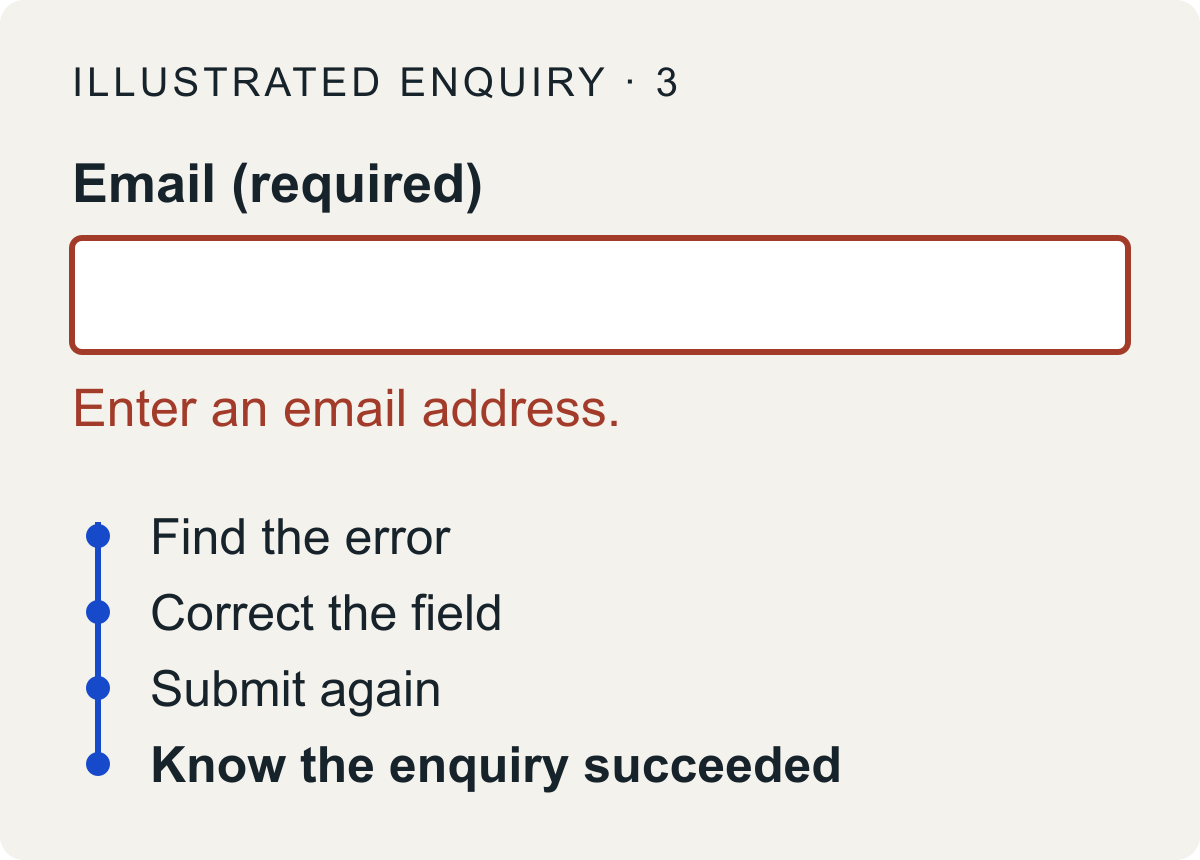
An error message starts the recovery. The route back to a successful enquiry must work too.
A red border alone leaves you guessing. A useful message gives a correction you can act on. If an error summary links to the field, follow that link by keyboard. If the message appears elsewhere, record how you found it and where focus stayed. These observations help a developer investigate the form’s feedback.
After correcting the mistake, submit the agreed test. Look for an explicit success message and any next step. If the page is ambiguous, record that; repeated submissions will not settle whether the first enquiry arrived. Confirming delivery with the form owner is a separate check.
Give the developer a route to the problem
“The form is inaccessible” makes someone else rediscover your attempt. Send the smallest sequence that reproduces the obstacle. For example:
Cannot choose a service with the keyboard — illustrative report
Where: Exact page URL, test date, browser/version, operating system, window size and zoom. Include the cookie choice and form-opening steps.
Steps: Open the page afresh. Tab to Request a repair and press Enter. Tab through the form: visible focus moves to Your name, Email, then Submit, never Service. Shift+Tab retraces those controls. Repeating from a fresh page gives the same result.
Expected: Reach Service and choose Plumbing using the keyboard.
Observed impact: I could not choose the required service or complete the enquiry by keyboard. Selecting Plumbing with the mouse let me continue; that was a separate attempt.
Replace those observations with yours, including the actual keys and any error text. Attach a screenshot or short recording if it makes the focus movement clearer; omit personal test details. You do not need to diagnose the code or assign a standards violation to report a reproducible obstacle.
After a repair, repeat the same sequence, then finish the whole enquiry—including the mistake. If it works, record that this task completed in this browser under these conditions. Screen-reader access, other enquiry paths and the rest of the site still need their own review.
The next campaign review can then contain something more useful than “the page looks good”: here is the enquiry we could complete, and here is the step someone still cannot get past.